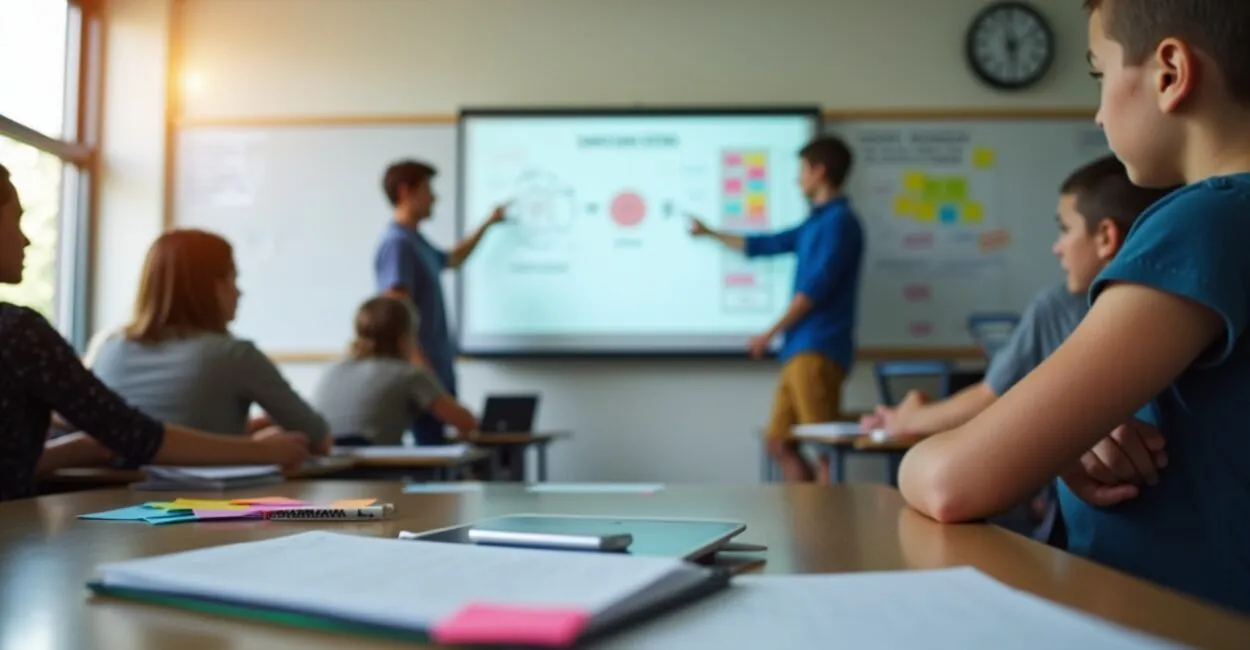
Interactive whiteboards have transformed classrooms by bringing together technology, multimedia, and real-time collaboration. They let teachers display content, annotate, invite students to interact directly, and connect to online resources, boosting engagement and learning outcomes from elementary school through higher education.
When considering interactive whiteboards, it’s important to assess compatibility, ease of use, software features, and the total cost of implementation. Choosing the right equipment and using effective teaching strategies ensures that technology becomes more than a tool—it can drive active learning and digital inclusion.

This article covers techniques and recommendations for using interactive whiteboards, model comparisons, buying tips for schools and teachers, and best practices for maximizing engagement and educational value.
Benefits of interactive whiteboards in the classroom
Improving student engagement
Interactive whiteboards increase engagement by letting students manipulate digital content directly, making lessons more dynamic. Interactive activities, videos, and multimedia resources help hold students’ attention and support different learning styles.
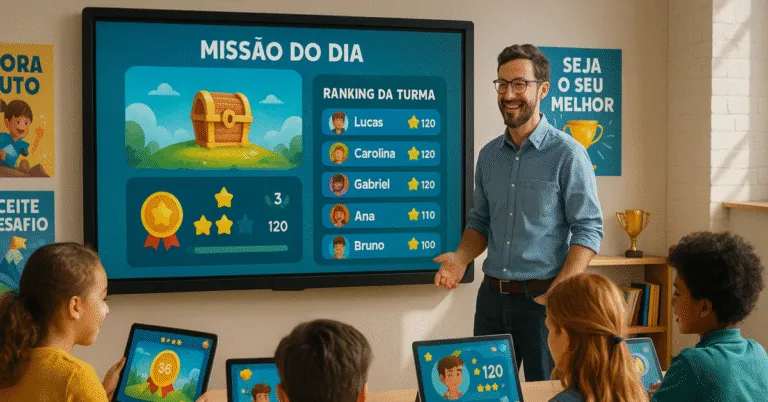
By incorporating real-time quizzes and collaborative annotations, teachers can check for understanding instantly and adjust the pace of a lesson. Gamification tools also encourage active participation and healthy competition between groups.
For schools, this means greater involvement and the potential for better academic outcomes, while also building essential 21st-century digital skills.
Accessibility and inclusion through technology
Interactive whiteboards support accessibility features such as text magnification, text-to-speech, and integration with assistive devices, helping students with disabilities. These features promote inclusion and support educational equity policies.
Teachers can adapt content in real time by creating high-contrast versions, adding captions to videos, and designing activities that use touch or a stylus. Personalization makes it easier to accommodate different learning paces.
Adopting accessible technology improves the experience not only for students with disabilities but also raises the standard of instruction for the entire class.
Integration with digital content and the cloud
Interactive whiteboards often integrate with cloud platforms, allowing teachers to save and share lessons, annotations, and digital materials. This makes it easier to continue learning outside the classroom and gives absent students remote access.
Cloud collaboration tools let classes edit documents at the same time, sync activities, and store assessments. Interoperability with learning management systems (LMSs) and educational apps expands a school’s digital ecosystem.
This digital workflow reduces reliance on printed materials and supports sustainable practices, while also enabling learning analytics to track student progress.
Setting up and installing interactive whiteboards
Infrastructure and connectivity requirements
Before installing interactive whiteboards, assess electrical service, network connections, and Wi-Fi coverage. A reliable internet connection affects features such as screen sharing, updates, and cloud-based tools.
Consider structured cabling, routers that can support multiple devices, and basic redundancy. At many schools, upgrading switches and ensuring enough bandwidth in each classroom can prevent lag and disconnections during live lessons.
Also plan for nearby outlets and support for students’ mobile devices, so the infrastructure can keep up with full use of the whiteboards’ features.
Equipment placement and calibration
Proper placement ensures the interactive whiteboard is easy to see and comfortable to use: center it at the front of the classroom and set the height so both students and teachers can reach it. Avoid direct window glare and lighting that creates shadows.
Calibrate touch or stylus input according to the manufacturer’s instructions to ensure precision. Check sensitivity and alignment regularly, especially on models designed for multitouch.
Preventive maintenance, proper surface cleaning, and firmware updates extend the equipment’s lifespan and ensure a better user experience.
Step-by-step installation to get started
- Plan: Assess infrastructure and needs; choose the room and intended use.
- Purchase: Choose a model that works with your existing software and devices.
- Install: Mount the board and configure power and network connections according to the manufacturer’s manual.
- Configure: Calibrate sensors, connect to the cloud, and test functionality with a school account.
Following these steps reduces initial problems and helps teachers adopt the equipment more quickly, so it’s ready for classroom use right away.

Teaching strategies with interactive whiteboards

Active lessons and project-based learning
Interactive whiteboards support active learning methods such as project-based learning (PBL), allowing teams to create collaborative presentations, map ideas, and document progress visually. Multimedia features enhance final projects.
Teachers can divide the class into groups responsible for different sections of the board, encouraging shared responsibility and social-emotional skill development. The tool makes the creative process visible and iterative.
When planning PBL, build assessment checkpoints into the board for ongoing feedback and documentation of learning evidence.
Using real-time formative assessments
Interactive quizzes, polls, and exercises on the board enable instant formative assessment. Immediate results help teachers differentiate instruction, review content, and provide targeted support to groups that are struggling.
Student response systems (clickers or apps) synced to the board make it easier to collect data and identify learning gaps, so teachers can intervene quickly.
Automatically recording responses also reduces administrative work and creates a history teachers can use to improve lesson planning.
Teacher facilitation and time management
An interactive whiteboard doesn’t replace the teacher’s role: teachers still organize activities, facilitate discussions, and keep technology use focused on clear objectives. Planning and lesson scripts help maintain focus and pacing.
Use digital templates to get activities started quickly and set time limits for each stage. Visual timers and on-screen cues help the class follow the flow of the lesson.
Training teachers in digital instructional design can maximize the whiteboard’s impact on learning.
Comparing models and technical features
Types of boards: projector vs. LED display
Interactive whiteboards can use interactive projectors or LED touch displays. Projectors are usually more affordable, but require lamp maintenance and control of room lighting; displays offer better brightness and contrast with less maintenance.
Modern interactive displays support advanced multitouch, pressure-sensitive styluses, and built-in connectivity, while projector-based solutions may be more flexible in larger spaces.
The right choice depends on budget, classroom brightness, and expectations for durability and image quality.
Technical comparison of popular models
| Feature | Model A (Display) | Model B (Projector) |
|---|---|---|
| Size | 65–86″ | 70–100″ (projection) |
| Touch | Precise multitouch | Infrared touch |
| Maintenance | Low | Medium/high |
Also compare response time, included software, and warranties. Public schools may prioritize durability, while private schools may value collaboration features and advanced interactivity.
Connectivity and software compatibility
Check compatibility with operating systems, LMSs, and educational apps. Protocols such as Miracast, AirPlay, and HDMI make screen mirroring easy; integration with Google Workspace or Microsoft 365 expands teaching possibilities.
Proprietary software often includes content libraries and assessment tools, but check licensing terms and recurring costs. APIs and support for open formats help protect the long-term value of the investment.
Also consider data security and remote management options for updates and institutional use controls.
Resources and content for interactive whiteboards
Educational platforms and digital libraries
Some platforms offer ready-to-use lessons, interactive activities, and learning objects compatible with interactive whiteboards. Digital libraries and open repositories make it easier to find content aligned with Brazil’s Base Nacional Comum Curricular (BNCC), the national core curriculum, and local curricula.
Integrate videos, simulations, and virtual labs to enrich science, math, and language lessons. Image repositories and interactive maps offer even more ways to explore.
Choose resources with clear educational-use licenses and allow teachers to customize them.
Creating interactive and multimedia activities
Use authoring software to create interactive slides, concept maps, and gamified activities. Simple tools can incorporate audio, video, and quizzes with automatic feedback, making lessons richer and more engaging.
Encourage students to create content right on the board, such as presentations, infographics, and multimedia scripts. Content creation builds communication and critical thinking skills.
Store activities in the cloud so teachers can reuse and share them, building a high-quality school resource library.
Assessment through portfolios and digital evidence
Interactive whiteboards make it easy to build digital portfolios where teachers and students can document projects, annotations, and assessments. These records provide evidence for evaluations and family meetings.
Use screenshots, session recordings, and file exports to compile a student’s history. Collaborative annotation tools support ongoing feedback and metacognitive reflection.
Digital portfolios promote transparency and let teachers track learning over time.
Maintenance, security, and value
Preventive maintenance plan
Create a maintenance plan that includes cleaning the surface, checking cables, updating firmware, and periodic calibration. Maintenance records help track service life and anticipate replacements.
Train school technicians to perform basic procedures and contact the manufacturer’s support team for more complex problems. Maintenance contracts can reduce downtime.
Preventive maintenance is usually more cost-effective than frequent replacements, maximizing return on investment.
Data security and privacy
When using connected whiteboards, review the software’s privacy policies and authentication protocols. Protect institutional accounts with strong passwords, two-factor authentication, and centralized user management.
Set up separate networks for educational devices and apply regular updates to address vulnerabilities. Train teachers in best practices for sharing content and obtaining consent before recording.
Compliance with local data protection regulations should guide school policies on platform use and student information storage.
Cost-benefit analysis for purchasing decisions
| Item | Initial cost | Total cost (5 years) |
|---|---|---|
| Interactive display | High | Medium |
| Interactive projector | Medium | High (lamps) |
| Software/licenses | Variable | Recurring |
Consider more than just the purchase price: include installation, licenses, maintenance, and teacher training. Financing options, partnerships, and government programs can lower the barriers to purchase.
Implementation and teacher training
Professional development and ongoing training programs
Training should cover technical use, digital instructional design, and connected classroom management. Hands-on courses and in-person or online workshops help teachers use interactive whiteboards to meet clear learning objectives.
Peer mentoring and school-based communities of practice encourage teachers to share lesson plans and solutions to common challenges. Internal certifications recognize the skills teachers have developed.
Investing in ongoing training increases the effectiveness of the technology and reduces resistance to adoption.
Best practices for gradual adoption
Start with pilot programs in specific classes and subjects before expanding. Gather feedback from teachers and students, adjust procedures, and document success stories as examples for future expansion.
Set clear usage goals and measures of educational impact, such as participation, performance, and satisfaction. Begin with simple activities and move on to more complex projects as confidence grows.
This gradual approach reduces risk and makes it possible to improve both administrative and teaching processes.
Engaging the school community
Involve school leaders, instructional coordinators, teachers, families, and students in choosing and using interactive whiteboards. Demonstrations and trial sessions help build consensus and set realistic expectations.
Sharing results and benefits, and hosting events to showcase student work, reinforces the value of the investment and builds support for maintenance and updates.
Community involvement makes technology initiatives more transparent and sustainable.
Purchasing and selection: criteria and recommendations
Essential criteria for choosing interactive whiteboards
Assess durability, warranty, compatibility with educational software, maintenance requirements, and ease of use. Also consider the right size for the classroom, connectivity, and the availability of local technical support.
Check license and update costs, as well as training options and documentation in Portuguese. The manufacturer’s reputation and reviews from other institutions can also help guide your decision.
Visit schools that already use the models you’re considering to see them in action before you buy.
Buying checklist for schools and teachers
- Check compatibility: Confirm integration with existing systems.
- Review the warranty: Confirm what it covers and the technical response time.
- Consider the total cost: Include installation, licenses, and maintenance.
- Request a demo: Test the equipment in a real classroom before deciding.
- Plan for training: Ensure both initial and ongoing training are available.
Following this checklist helps school leaders make informed decisions, avoid surprises, and ensure the investment delivers a lasting educational impact.
Where to find funding and partnerships
Schools can look for public grant opportunities, government educational technology programs, and partnerships with local businesses or universities. Collaborative projects can improve the chances of securing funding and technical support.
Also consider leasing or installment plans that spread costs over several years. Nonprofits and regional educational innovation funds may offer grants.
Document the instructional plan and impact measures to strengthen funding and partnership applications.
Conclusion
When chosen carefully and integrated with teaching strategies, interactive whiteboards boost engagement, promote inclusion, and make formative assessment easier. Adoption requires infrastructure planning, teacher training, and maintenance policies to ensure sustainability.
When considering interactive whiteboards, prioritize compatibility, total cost, and training. Try pilot projects, assess their impact, and expand gradually. Invest in training and management to turn technology into meaningful improvements in teaching.
Frequently asked questions
How do I choose the right interactive whiteboard for my school?
Choosing the right model means considering the physical space, budget, learning objectives, and compatibility with existing systems. Choose displays if you want better image quality and less maintenance; consider projectors if you need larger screens at a lower upfront cost. Also evaluate software licensing, manufacturer support, and ease of use for teachers. Pilot tests and visits to schools using the models can help you make a choice that better fits your school’s needs.
What recurring costs come with interactive whiteboards?
Beyond the initial purchase and installation, the main recurring costs include software licenses, updates, preventive maintenance, replacement parts (such as projector lamps), and ongoing teacher training. Estimate these costs over a three- to five-year period to calculate the total cost of ownership. Support contracts and extended warranties can reduce financial risk, as can financing options that spread the investment over time.
How can I integrate interactive whiteboards into the curriculum and the BNCC?
Integrate interactive whiteboards into the curriculum by using them for activities that develop skills and competencies included in Brazil’s Base Nacional Comum Curricular (BNCC), the national core curriculum, such as problem-solving, communication, and critical thinking. Plan lesson sequences that use multimedia, simulations, and collaborative projects, aligning learning objectives, assessment criteria, and evidence of learning. Document results and adapt your approach based on formative assessment data to keep technology aligned with curriculum goals.
What maintenance is needed to keep interactive whiteboards working for years?
Maintenance includes regularly cleaning the surface, checking cables and connections, calibrating touch input, updating firmware, and inspecting components such as mounts and power supplies. For projectors, replace lamps and filters according to the manufacturer’s specifications. Maintenance records and technical support contracts help reduce downtime. Training local staff can lower costs and speed up the resolution of simple problems.
What free and reliable resources can I use with interactive whiteboards?
Many free tools work well with interactive whiteboards, including educational video repositories, image platforms, and collaborative authoring tools. Resources such as Google Slides, Google Jamboard, and educational libraries from public institutions offer useful materials. Also look for content on government platforms and from trusted institutions to ensure curriculum alignment. Check licenses and adapt materials for classroom use based on your teaching needs.
Sources and further reading: Brazilian Ministry of Education (MEC), UNESCO.
Artigos Relacionados
 Active Learning Methods: Strategies to Engage Students
 Active Learning Methods: Engage Students With Proven Practices
 Modern Elementary Education: Practices That Engage Students
 Educational Gamification: Innovative Strategies to Boost Student Engagement
 Effective School Management: Practices for Students and Staff
 Improving Basic Education: Practical, Measurable Strategies