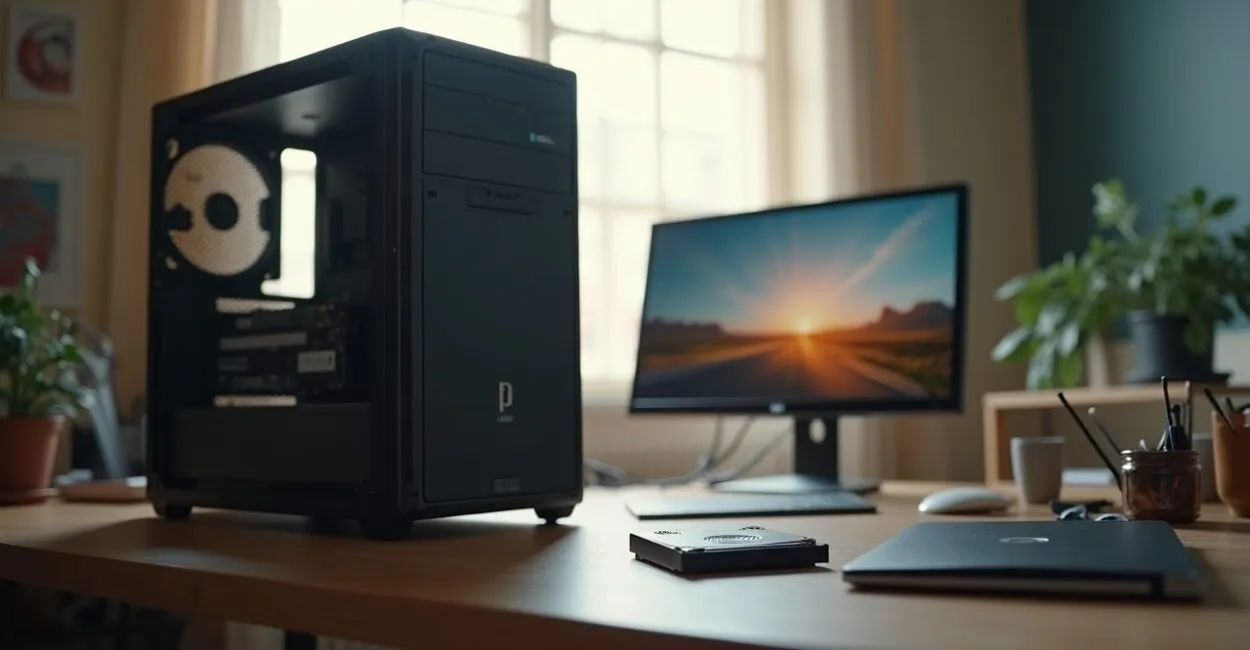
If your computer takes forever to start up, the problem is almost never the processor—it’s usually the storage drive. On a budget PC, choosing between an SSD and an HDD can make a bigger difference to the user experience than adding a few gigabytes of memory in some situations, because it affects startup times, app launches, and how responsive the system feels. When it comes to SSD vs. HDD for a budget PC, the practical answer is usually simpler than it seems: for studying and work, an SSD makes everything feel much smoother.
The thing is, the upfront price doesn’t tell the whole story. An HDD may seem like a better deal based on cost per terabyte, but an SSD reduces freezes and speeds up loading for your browser, Microsoft Office, Windows, and even online learning and video conferencing systems. Below, you’ll see when each option makes sense, when an HDD is still worth considering, and which one is usually the better value for anyone who wants to spend less without making the wrong purchase.

The Essentials
- For studying and work, an SSD is the best choice for most budget PCs because it improves the perceived speed of the entire system.
- An HDD is only worth it when your priority is storing lots of files for as little money as possible and slow performance isn’t a concern.
- A 240 GB or 480 GB SATA SSD is usually the best balance for a tight budget.
- If your PC still uses an HDD as its primary drive, switching to an SSD is usually the upgrade with the biggest immediate impact.
- For very old machines, check that the computer supports SATA and that Windows will be installed correctly.
SSD vs. HDD for a Budget PC: What Changes in Practice
SSD stands for Solid State Drive, a storage device with no moving parts. HDD, or Hard Disk Drive, uses spinning platters and a physical read head. In practical terms, an SSD accesses data much faster, while an HDD relies on mechanical movement, which causes delays.
In practice, you notice the difference right away in your first task of the day: turning on the computer, opening your browser, loading WhatsApp Web, launching Excel, or switching between tabs. On an HDD, all of this tends to feel sluggish. With an SSD, the system feels new, even on an entry-level laptop.
The difference between an SSD and an HDD isn’t just about read speeds on paper; it’s about how much waiting you no longer notice during everyday tasks.
For reliable technical information on storage and performance, see Microsoft’s documentation on system requirements and installation at official Microsoft Support, and Kingston’s overview of SSD types in its educational materials. These aren’t shopping links; they’re useful resources for understanding the differences without the sales pitch.
Why an SSD Makes More Sense for Studying and Work
Launching Apps Becomes a Whole Different Experience
Anyone who studies or works with a browser, PDFs, office software, and video calls feels the benefits of an SSD every day. The system stops “thinking” before every click. This is even more noticeable on PCs with 4 GB or 8 GB of RAM, where slow storage becomes a bottleneck and makes the computer seem worse than it really is.
Fewer Slowdowns When Memory Runs Low
When Windows uses a paging file, the drive comes into play. With an HDD, performance drops quickly. With an SSD, there’s still an impact, but it’s much more manageable. This matters on a budget PC because people often have multiple tabs, calls, spreadsheets, and documents open at the same time.
I’ve seen people think they needed to replace their entire laptop. In reality, the machine was just held back by an old HDD. After switching to an SSD, the same computer gained several more years of useful life. It didn’t become a gaming PC, of course, but it became a functional computer for studying without the frustration.
On an entry-level PC, an SSD usually delivers the biggest usability boost for the money because it removes a bottleneck where you notice it most: response time.
For a more neutral technical overview of PC performance and storage, Intel explains the difference between SSDs and HDDs clearly and objectively, without relying on marketing language.
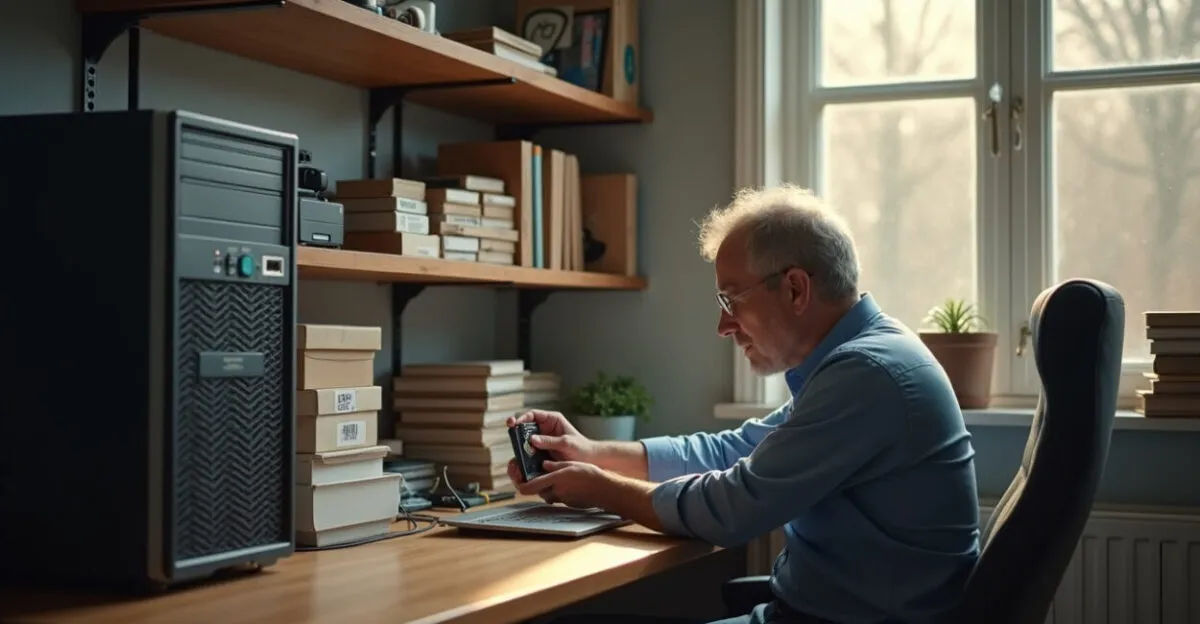
When an HDD Is Still Worth It

Large Files on a Tight Budget
An HDD is still useful when the goal is to store lots of content for less: backups, videos, photos, old projects, class files, and raw footage. It usually still wins on cost per terabyte. If you need 1 TB, 2 TB, or more and speed isn’t a priority, an HDD can work well as secondary storage.
Read also: How to Build a Budget PC for Studying and Work in 2025
Older Machines for Light Use
There’s a nuance here: not every old PC needs the same solution. If the computer is only used for email, viewing documents, and storing media, an HDD may be “good enough.” But that doesn’t mean it’s the ideal choice. It simply means it covers basic needs at the lowest upfront cost.
This approach works well for cold storage, but falls short when the drive is used as the main home for the operating system. Windows installed on an HDD is usually the part that causes the most frustration. It works for storing data. For everyday use, it tends to disappoint.
Read also: Best Budget Processor for a Study PC: 2025 Guide
How Much Storage to Buy Without Overspending
Use case
Best-balanced option
Why
Basic studying and browsing
240 GB SATA SSD
Delivers a noticeable speed boost at a lower upfront cost
Office work, PDFs, and classes
480 GB SATA SSD
Room for the operating system, apps, and updates
Large files and backups
SSD + HDD
SSD for the system, HDD for bulk storage
Very tight budget
Smaller SSD for the system
It’s better to invest in a smooth experience than extra slow storage
In most cases, 240 GB is enough for Windows, a browser, Microsoft Office, and a few learning apps. If the computer is shared or you tend to keep a lot of files locally, 480 GB gives you more breathing room. Beyond that, prices go up, and the value depends on how you actually use the computer—not on worrying about “running out of space.”
Compatibility, Installation, and What to Check Before You Buy
SATA Is the Safest Bet for a Budget PC
For entry-level machines and older laptops, a SATA SSD is usually the safest choice. It works with a wide range of hardware and delivers a major improvement without requiring a modern motherboard. An NVMe SSD is faster, but it’s only worth it if your computer has a compatible M.2 slot and the right support.
Clone or Fresh Install?
If your current HDD still works, you can clone the system to the SSD. That saves time, but you need to be careful with partitions and alignment. A clean install usually delivers a more stable result, though it takes longer at first. Technicians disagree about which approach is best because it depends on the condition of Windows, the health of the HDD, and the experience of whoever handles the migration.
Before buying, check three things: whether the interface is SATA or M.2, whether there’s enough physical space in the case or laptop drive bay, and the condition of the power supply in very old desktops. When working with used hardware, I always check these before assuming the problem is “just the drive.”
If you want to check compatibility with system standards and support, the Microsoft Learn technical documentation can help you verify installation and migration requirements.
The Best Value for a Budget PC
If you want to spend less and get a real performance boost, the most sensible choice is usually an SSD as the primary drive and, if needed, an HDD for archiving. This matters even more if you use your computer every day and don’t want to waste time waiting for loading bars. An HDD on its own only wins when your budget is so tight that storage capacity matters more than a smooth experience.
Here’s how I’d prioritize upgrades: first an SSD, then more RAM if the system is struggling, and only then extra HDD storage. Many people do it the other way around and end up paying twice for a disappointing result. For studying, productivity, and everyday home use, fast storage matters more than you might think.
What to Do Now to Make the Right Choice
If your budget PC still uses an HDD as its primary drive, the smartest move is to consider how much you use the computer every day and buy the smallest SSD that fits your budget, rather than sticking with lots of slow storage. For most people who use their computer for studying and work, this will improve their daily routine more than any “cosmetic upgrade.”
The next step is simple: check whether your computer supports a SATA SSD, choose the smallest capacity that meets your needs, and decide whether to keep the old HDD for backups or replace it entirely. Buying based on how you actually use your computer helps you avoid regret and get more for your money.
Frequently Asked Questions
Does an SSD Really Make a Budget PC Faster?
Yes, and you’ll notice the difference right away. The computer boots faster, opens apps with less delay, and responds better in everyday use. On basic machines, this improvement is usually more noticeable than swapping in a processor that’s only slightly faster. For studying and light work, the experience improves significantly.
Does an HDD Still Make Sense for a Student’s Computer?
Yes, but more as secondary storage than as the primary drive. If the goal is to store videos, class files, and backups, an HDD is still useful because of its low cost per terabyte. But for running the system and opening everyday apps, it’s usually the weakest part of the computer. For students, an SSD almost always offers more benefits.
What SSD Size Is Enough for Basic Use?
A 240 GB SSD is enough for basic use with an operating system, browser, Office, and a few apps. If the computer will also store lots of photos, PDFs, and work files, 480 GB offers more peace of mind. Buying more storage than you need usually hurts the value. The ideal capacity depends on what you’ll actually keep installed.
Is It Worth Using an SSD and HDD Together in the Same PC?
Yes, if your computer supports it. Use the SSD for Windows and apps, and the HDD for large files you don’t access as often. This combination delivers good speed without giving up affordable storage space. Just don’t install the operating system on the HDD while leaving the SSD nearly empty—that would waste the main benefit of the upgrade.
Is an NVMe SSD Better Than a SATA SSD for a Budget PC?
Only if your computer supports NVMe and the price fits your budget without forcing you to skip other upgrades. For everyday use, a SATA SSD already offers a huge improvement over an HDD. NVMe is faster, but you’ll notice that difference less when browsing, studying, and editing documents. For most budget PCs, SATA is the more sensible choice.
Artigos Relacionados
 Big Data in Education: Turning Data Into Better Teaching Practices
 Neuroscience-Based Study Strategies for Better Focus
 Cosmetic Dentistry: How to Create Better Smiles
 Biomedical Science or Pharmacy: Which Career Is Right for You?
 Physical Therapy or Occupational Therapy: Which Should You Choose?
 Circular Economy vs. Recycling: Which Creates More Value?